
Overview
The Commissions feature (currently in beta) helps you calculate, track, and pay salesperson commissions based on gross profit — all directly within OMG Presentations & Order Management.
This article walks through who can access Commissions, how to set up commission brackets, how commissions are calculated, and how to manage commission payments.
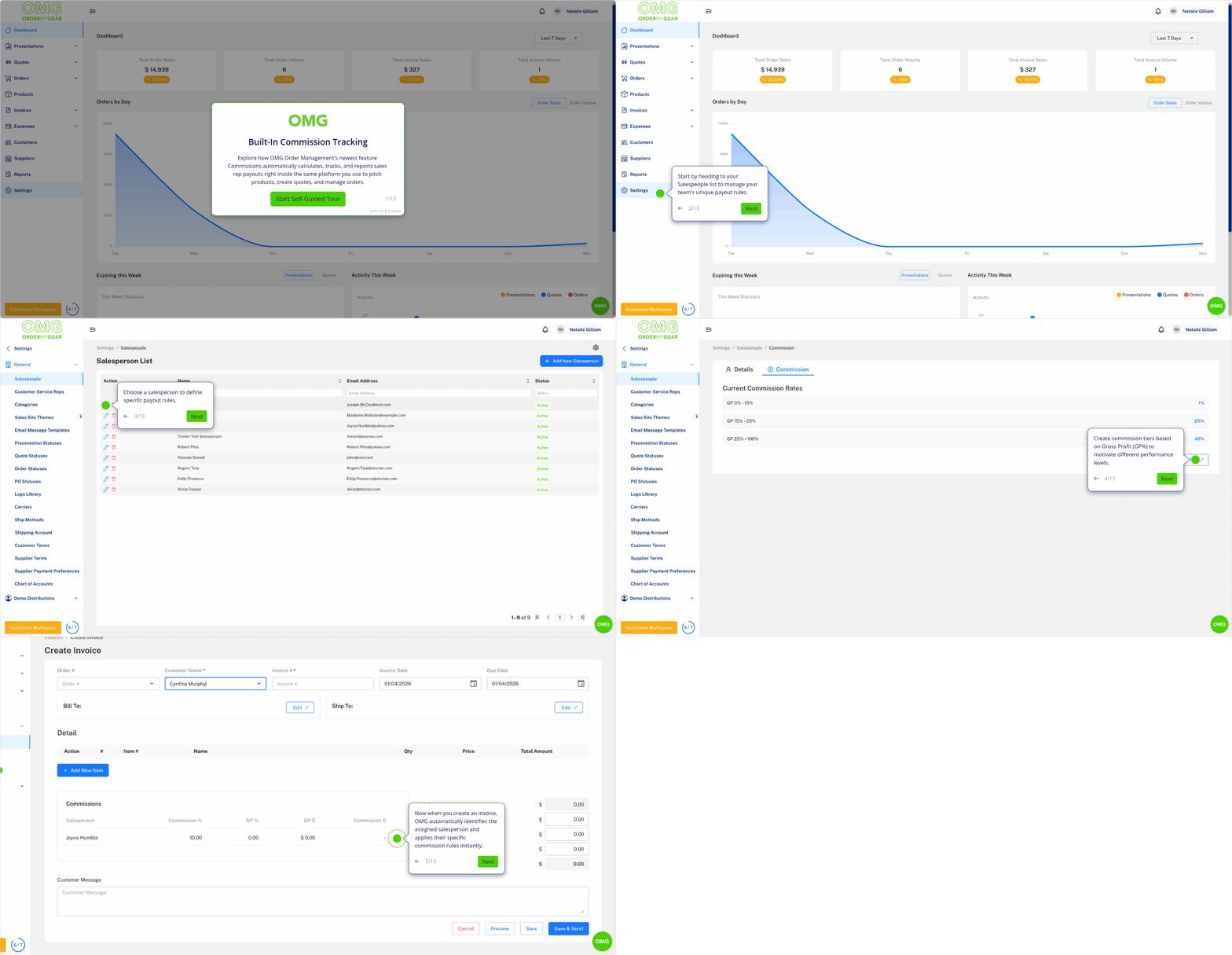
Click here to view a guided demo.
Who Can Access Commissions
Commissions setup and management are only available to users with the Admin or Accounting role.
If you don’t see Commissions-related settings or reports, check your user role.
How Commissions Are Calculated
- Commissions are paid on Invoice Paid (not on invoice creation).
- Commission brackets are based on total gross profit (GP) at the time the invoice is created.
- You can create as many commission brackets as needed per salesperson.
- When an invoice is created, commissions are:
- Automatically calculated based on the current gross profit
- Able to be manually overridden, if needed
Behind the scenes, invoice creation records the following accounting entries:
- Debit: Commissions Expense
- Credit: Accrued Commissions Liability
Setting Up Commission Brackets
Commission brackets are defined per salesperson.
To set up or edit commission brackets:
- Go to Settings > General > Salespeople
- Select a salesperson and click Edit
- Open the Commission tab
- Add one or more commission brackets based on gross profit
- Save your changes
Each salesperson can have their own unique commission structure.
Commissions on Invoices
When you create an invoice:
- Commissions are automatically calculated based on the salesperson’s commission brackets and the invoice gross profit
- The calculated commission appears on the invoice
- You may manually override the commission amount if adjustments are needed
Once saved, the commission is recorded as accrued, meaning it’s tracked but not yet payable until the invoice is paid.
Managing Commissions (Invoices > Commissions)
The Invoices > Commissions page is the main hub for commission management.
You’ll see two primary views:
Accrued
- Lists commissions that have been created and recorded
- These commissions are not yet payable because the related invoice has not been paid
Payable
- Lists commissions that are ready to be paid
- These appear once the related invoice is marked as paid
Paying Commissions
Commission payments are created directly from Invoices > Commissions.
To create a commission payment:
- Go to Invoices > Commissions > Payable
- Click Create Payment
- Select one or more payable commission records
- Save the payment to mark the selected commissions as paid
Once saved, the payment:
- Appears in the Payments list
- Can be viewed or modified later, if needed
The accounting entries for a commission payment are:
- Debit: Accrued Commissions Liability
- Credit: Cash Asset
Important Notes About Beta
- Commissions is currently in beta, and functionality may evolve based on customer feedback
- Although this feature is in beta, it does impact your accounting. Commissions created and paid will post real accounting entries, so it should be used as a fully fledged feature
- Manual overrides are supported, but we recommend documenting adjustments for internal tracking
- Only Admin and Accounting users can manage commissions
If you have questions or feedback during the beta, please reach out to our support team — your input helps shape what’s next.
Comments
0 comments
Article is closed for comments.